

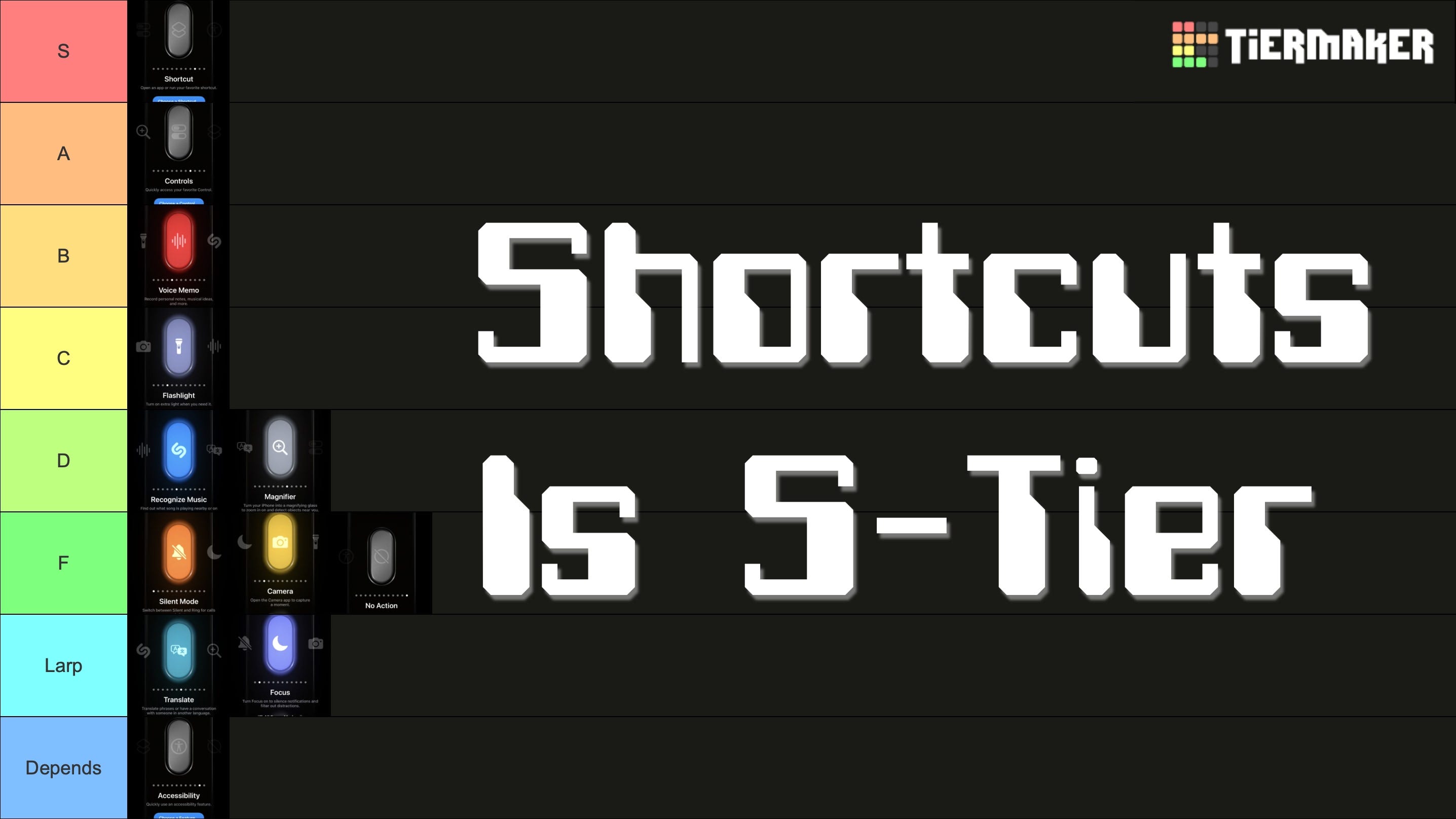
On Saturday, I saw the following post come across my feed ranking the iPhone action button options:


Here’s their ranking:
S: Flashlight, Silent Mode
A: Camera
B: Recognize Music (Shazam)
C: Focus
D: Translate, Accessibility
F: Magnifier, No Action
Larp: Voice Memo
Depends: Controls, Shortcut
My response, hitherto unelaborated upon, is that Shortcuts needs a new spot:


While I concede that “it depends” is technically accurate given that it fits depending on how you use it, removing it from the actual ranking skews all the results – both Controls and Shortcuts offer 50-150+ options each, making them clearly S-tier choices. Here Cody sums it up nicely:

My problem with the original tier list is that de-ranking it meant the 3 million people viewing the post think Shortcuts is “maybe” valuable, rather than the #1 thing they should explore if they want more out of the Action button.
I also think many of the other choices were a fairly basic assessment in some places and not at all accurate in others – so I made my own ranking instead:
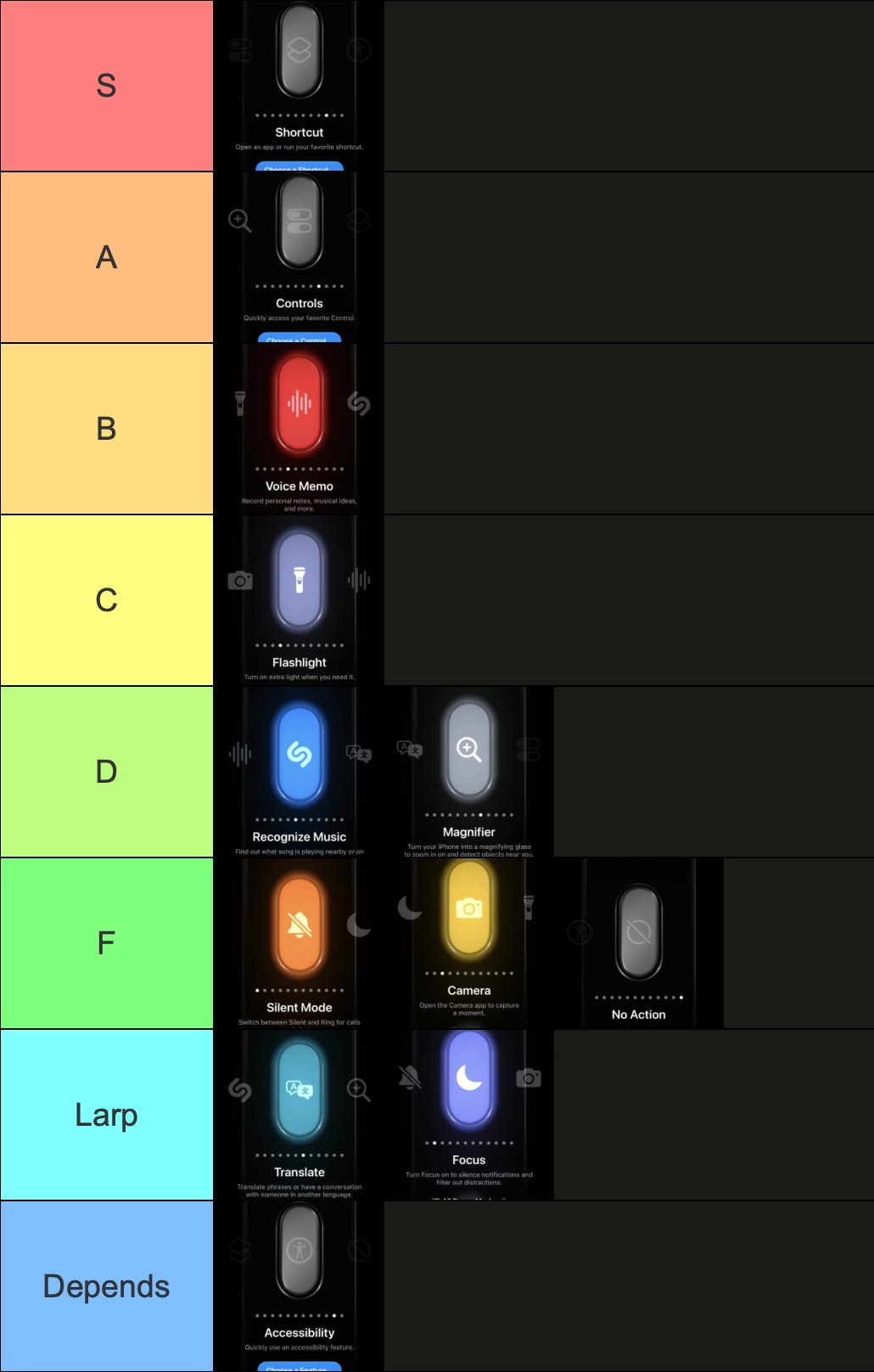
S: Shortcuts
Shortcuts: Dynamic workflows with custom control flow, actions from your apps, and endless configurations. Choose from supported App Shortcuts (more on that in the next section) or create your own.
A: Controls
Controls: Dynamic options from Control Center, available immediately. Choose from supported apps.
B: Voice Memo
Voice Memo: While perhaps a larp, this is most accessible way to capture audio on iPhone. For people starting out with agents, probably easiest way to record conversations for transcription/processing later. This is a full product sold separately in things like Zoom recorders; for musicians, a perfect capture tool.
C: Flashlight
Flashlight: Good use of dual functionality for button; press for On, press again for Off.
D: Recognize Music (Shazam), Magnifier
Recognize Music: Fine use case, but also available in Control Center; if you need this so available, better to use Auto-Shazam in the app to capture everything (also available on Apple Watch now).
Magnifier: Useful, but launches into app experience; this would be better served as a modifier while in the Camera app to switch to Magnifier when Action button is pressed.
F: Silent Mode, Camera, No Action
Silent Mode: Default option, but unnecessary if available in Control Center; Apple made the Action button exist because they deemed this not necessary as the primary function for this space.
Camera: Most iPhones have a dedicated Camera button now; swipe from Home Screen also activates Camera, so no need for many multiple access points
No Action: Obviously a waste of an opportunity.
Larp: Translate, Focus
Translate: in practice, Translate’s functionality is inferior to the Translate app experience (I tried setting it while I was in Spain this September and fell back to the app every time instead)
Focus: Focus only works well for a single focus, which falls apart if you have more than one focus (it really only works for Do Not Disturb or Reduce Notifications).
Depends: Accessibility
Accessibility: “Accessibility is something most people don't think they need until they do.”
I’d love to hear reactions on my ranking or your own rankings – subscribers can leave a comment with their own:
Personal Agents on the Action button
GrokBot
On Monday, SpaceX validated my S-tier ranking by releasing an update to GrokBot that enables Voice Mode directly from the button – a great example of how one single update can make or break your Action button experience by adding a good shortcut:


Here’s how to set it up:

SpaceX engineer Parker Conrad also clarified some of the functionality, in response to someone who sent off a request and wasn’t sure what to do next:
Comments online further clarified how this update took the Shortcuts option from “it depends” to S-tier for many folks:


ChatGPT Dot
Earlier last week, ChatGPT also celebrated their own Action Button functionality alongside the release of their Dot update for their widget –


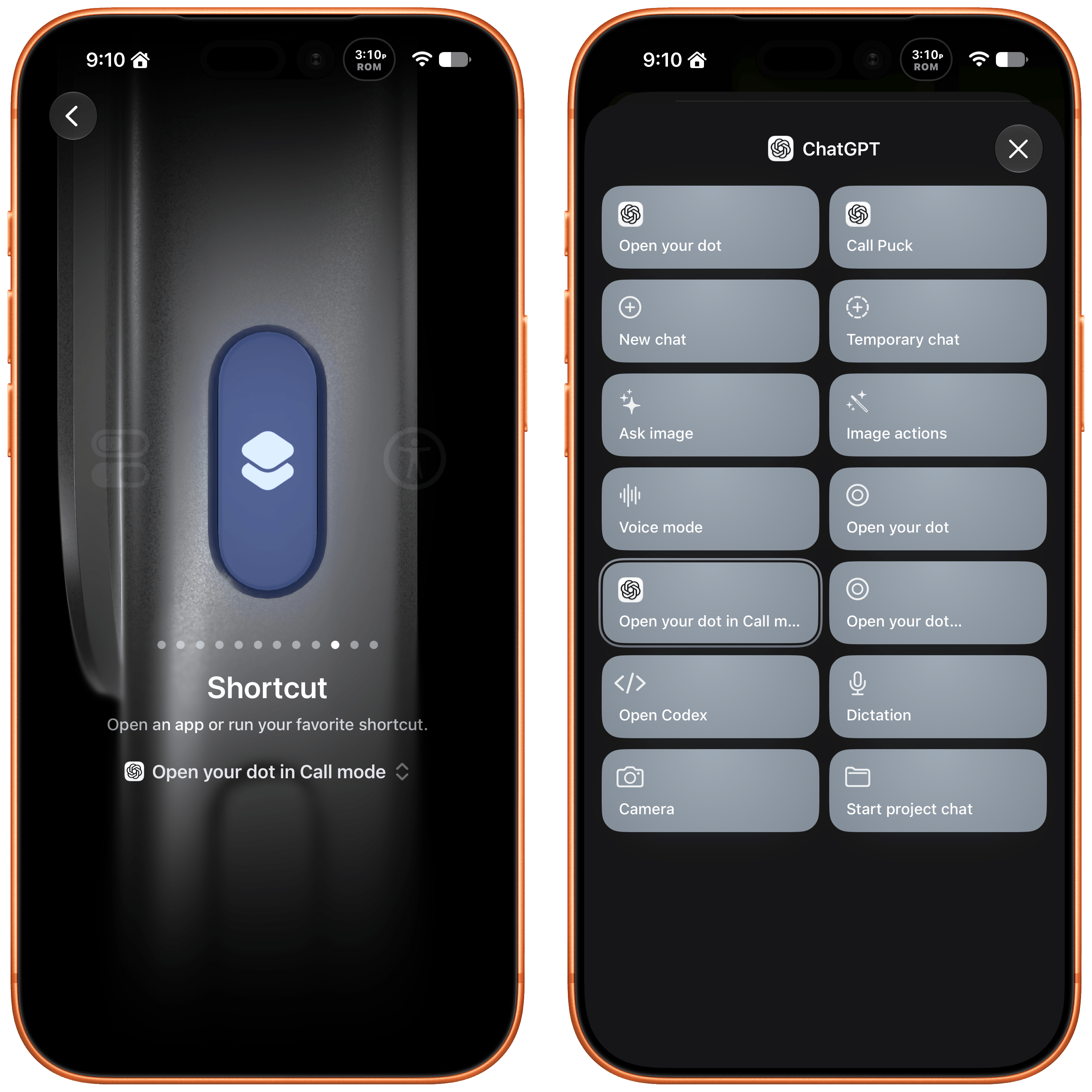
As covered by John Voorhees on MacStories, their implementation opens the ChatGPT app to your Dot in Call Mode – a similar setup, but taking you into the app instead of a seamless Live Activity experience:
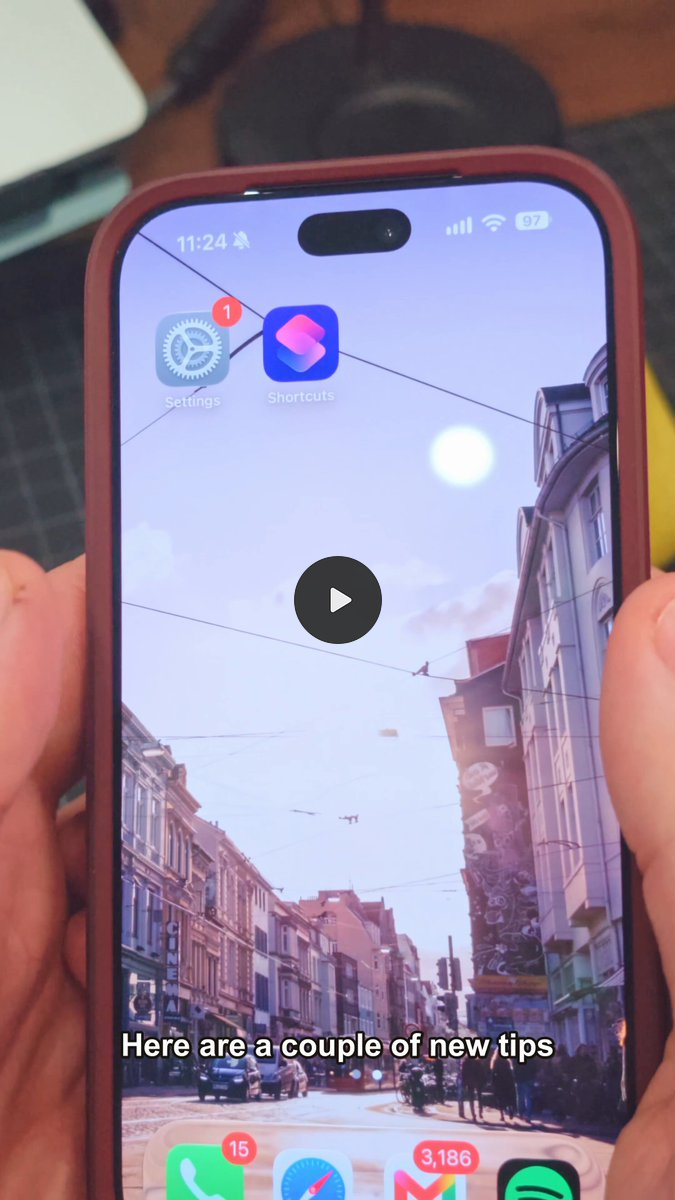
Dominik Kundle from OpenAI also went a step further, setting his Camera Control button automatically open Magnifier, which then triggers a Shortcuts automation set to watch for Magnifier being opened and then switches to his ChatGPT dot instead:

The Rise of App Shortcuts

If you’re not familiar, all of this Action Button functionality is powered by the same API that makes personalized Siri AI possible – App Intents; more specifically, the App Shortcuts feature of App Intents.
In Shortcuts and Siri AI, a single “app intent” is a single action; this defines something a user might intend to do (intent = action). When a developer adds support for an action, it becomes available inside Shortcuts as part of your toolbox of potential tools. Originally, this meant building anything on top required a user to set up a custom shortcut to accomplish that task, sometimes/often with only one action step included – many of the shortcuts I’ve shared in my Shortcuts Library are App Shortcuts-like, designed for apps that have not yet supported it yet:
In order to make this easier on the community, Apple designed the App Shortcuts feature; rather than rely on Custom Shortcuts set up by the user, App Shortcuts are automatically generated for the user upon installing the app. The developer takes their full set of available tools, then defines the most relevant ones to pre-define to the system—any the user might want to have in Shortcuts, but without putting the burden on them.
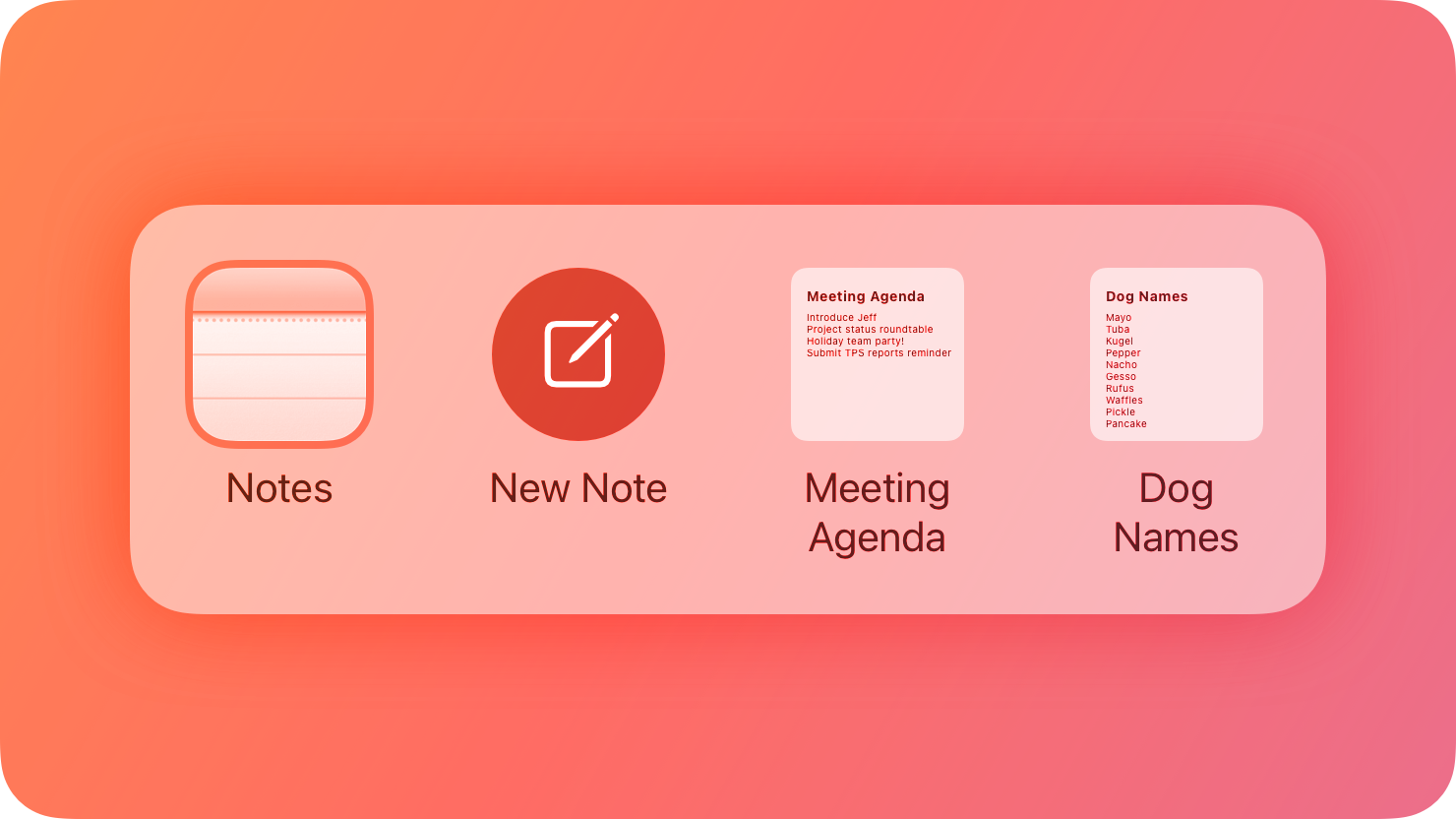
App Shortcuts are also more dynamic than simply providing the core set of App Intents to the system. For example, an “Open Note” intent can present a list of notes, or be set to individual notes – with App Shortcuts, developers can build a dynamic experience that takes the Open Note action, provides every relevant note (say, those that are pinned), and automatically generates instances of Open Note for each relevant note. From one intent and one App Shortcut, you could have all your pinned notes generated as individual shortcuts, automatically available to request via Siri or search via Spotlight.
In the MacStories article, you can see a version of this with “Start chat in Project” as well as “Open your dot”:
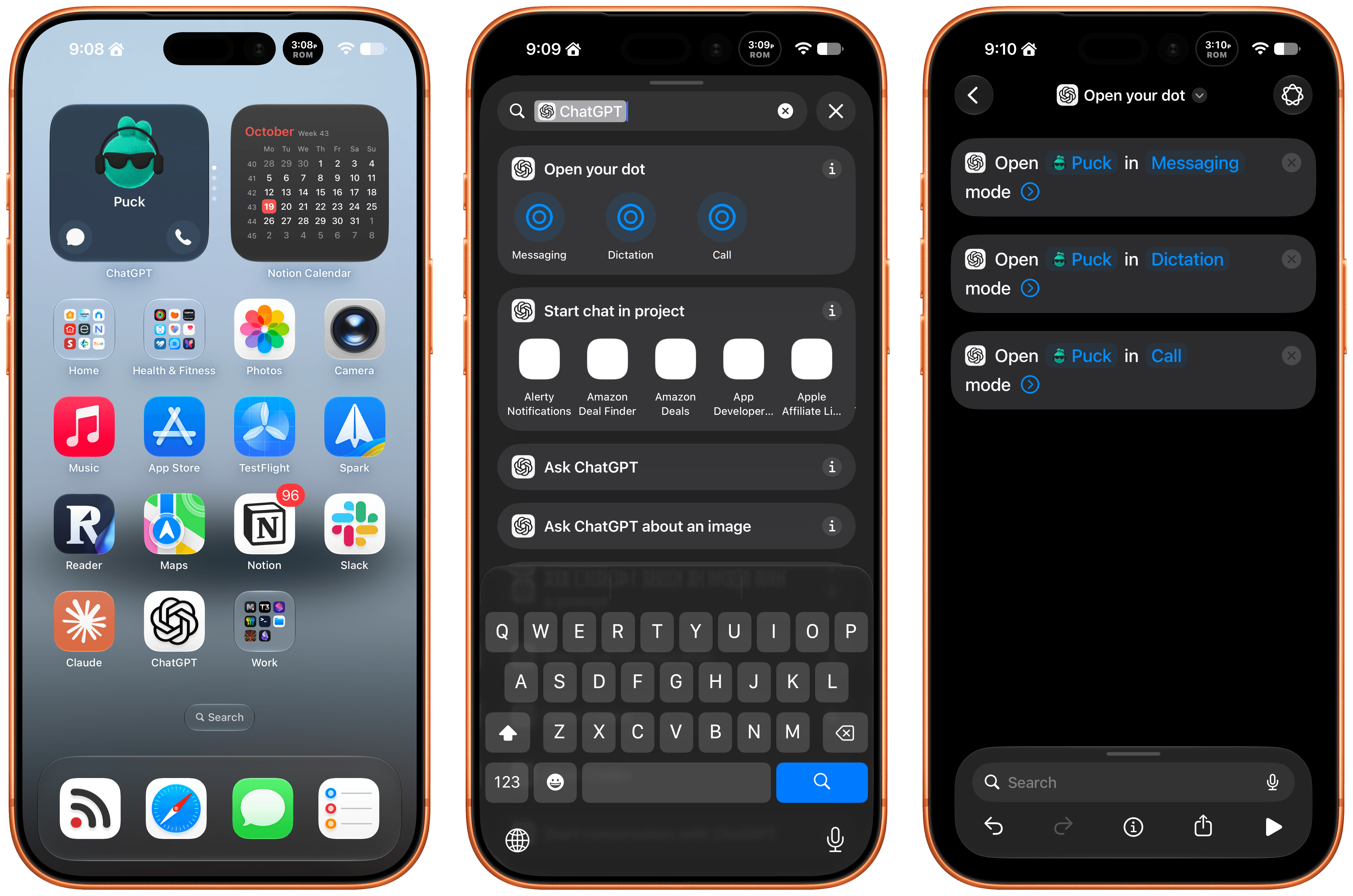
For “Start Chat in Project,” you can see the author’s set of projects available under the action – if searching in Spotlight, the keyword “Amazon Deals” should show this project and a Start Chat button. For “Open your dot,” searching Messaging, Dictation, or Call should also show instances of this App Shortcut as a tappable result.
I’m thrilled to see more developer adoption of the Action button via App Shortcuts, especially from such competitive companies such as SpaceX and OpenAI – these kinds of pushes tend to create more competition, so I’d expect more updates from Anthropic or Meta for Claude and Muse, respectively, in the coming weeks.
I’d also love to see more from Apple themselves here – there’s plenty of good reason for the Siri app to be present here and offer App Intents actions for Shortcuts, App Shortcuts options for Action button, and, while they’re at it, a Siri widget too. Technically, Apple has Use Model and Visual Intelligence available, but the everyday user won’t think to select the Apple Intelligence actions for a Siri-like experience.
Using Apple Feedback, I filed FB23102370 (Add actions for the Siri app to Shortcuts) back in June, and just filed FB25264232 (Add App Shortcuts for Action button/Spotlight indexing for Siri actions/conversations) asking for this new functionality today. I will update in a future issue if either of these requests are addressed!
I plan to cover App Shortcuts for developers in detail in a future paid issue, so subscribe now to get that issue when it releases:
More to explore
Stories
Documentation
Getting started with the App Intents framework | Apple Developer Documentation
Adopting App Intents to support System Experiences | Apple Developer Documentation
Core sessions
Expanded sessions
Overview sessions
Thanks for reading! If you’ve enjoyed this issue, please share with others who might find it interesting too: